How to use Bashery
The whole app, feature by feature. You drum, the band follows - this is everything else.
Getting around the app
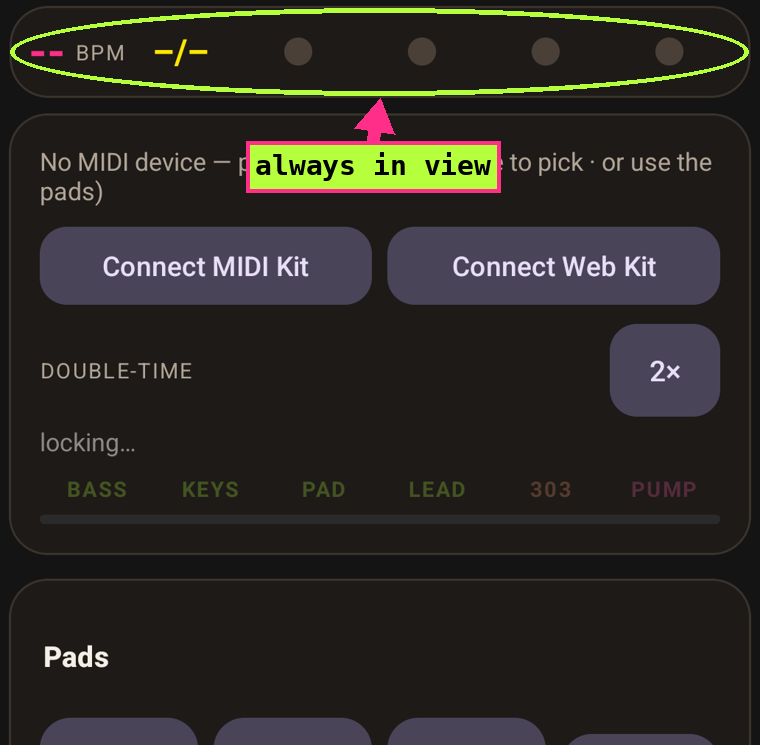
Bashery is laid out in tabs across the top - Play, Band, Seq, Sound, Song, Mixer, Setup. Move between them by tapping a tab, tapping the arrows on either side, or swiping left and right. Your tempo, meter and beat stay pinned in the little bar just under the tabs so they never scroll away, and the play controls (Play, Count me in, Rec) stay pinned at the bottom wherever you are.
- Play - the on-screen pads and your kit connection
- Band - how the band follows you, plus Bands, My jams and recording
- Seq - the 303 acid sequence, the scale modes and the dice
- Sound - the sound of each part, the pump and the effects
- Song - style, key and the chord progression
- Mixer - levels, octaves, and where the band plays (phone or MIDI out)
- Setup - map pads, calibrate timing, acoustic mode and diagnostics
1. Connect your drums
Bashery takes drums three ways. Pick yours:
E-drum kit (USB MIDI) - the sweet spot
And not just kits: any MIDI device you can hit works - sample pads (SPD-SX and friends), pad controllers, an MPC, even a MIDI keyboard. If it sends notes with velocity, Map pads can turn it into your drums; on a small pad controller, kick + snare + one cymbal is plenty to drive the band.
Connect: a USB cable from your module's USB port into the phone (with a USB-OTG adapter if your cable doesn't fit the phone directly). No settings needed on most modules - the status line shows Connected: your kit within a couple of seconds. If your module has both "USB TO HOST" and MIDI DIN ports, use the USB one; DIN needs a separate MIDI interface.
Plugged in but not listed? Many modules hide from Android until their USB driver mode is set to Generic (sometimes called "General") in the module's own settings - the vendor mode only talks to the maker's PC software. Change it, replug the cable, and open the device list again. One more thing worth knowing: USB MIDI carries notes, not sound. If your gear has melodic voices (a synth, a DAW, a module with a GM bank), set the output option to MIDI device and it makes the band's sound - but drum-only modules have no melodic voices and stay silent on those channels, so keep the output on Phone with that kind of module.
Map pads (Setup tab > Map pads - the first-run guide also offers it): the app calls out one drum at a time - kick, snare, hats, toms, ride, crash 1, crash 2 - and you simply hit that pad once. This teaches the app which MIDI note your module sends for each drum, because every brand numbers pads differently.
- Skip what you don't have - a missing tom or second crash is fine.
- Only one crash? Give crash 2's job (the chord change) to something you can spare - map a spare tom or a splash as CHANGE, or map your one crash as CHANGE and use the on-screen CRASH 1 for the sequence.
- Wrong pads triggering things? Just run Map pads again - it overwrites the old mapping.
Calibrate timing (same Setup tab): play along with the clicks for about 8 seconds. This measures your whole setup's latency - module, cable, phone - so the band lands exactly with you, not slightly behind. Redo it if you change modules, phones, or headphones.
Bluetooth kit (wireless) - no cable
If your kit or module talks Bluetooth MIDI, or you have a little BLE MIDI adapter (a WIDI, a Yamaha MD-BT01, a Quicco mi.1 and friends), you can connect with no cable at all.
Connect: turn Bluetooth on, put your kit in pairing mode, then in the app tap the MIDI status line (or Connect MIDI Kit) > Connect a Bluetooth kit. The app scans and lists any wireless kit it finds; tap yours to connect. The first time, Android asks for Bluetooth permission - allow it and tap Connect a Bluetooth kit again. Everything after that (Map pads, Calibrate timing) is exactly the same as a wired kit.
Wired USB is still the most rock-solid connection, so if you have both, a cable is the safe bet for a gig. Bluetooth is the one for practising without a lead across the floor.
Touch pads - no kit needed
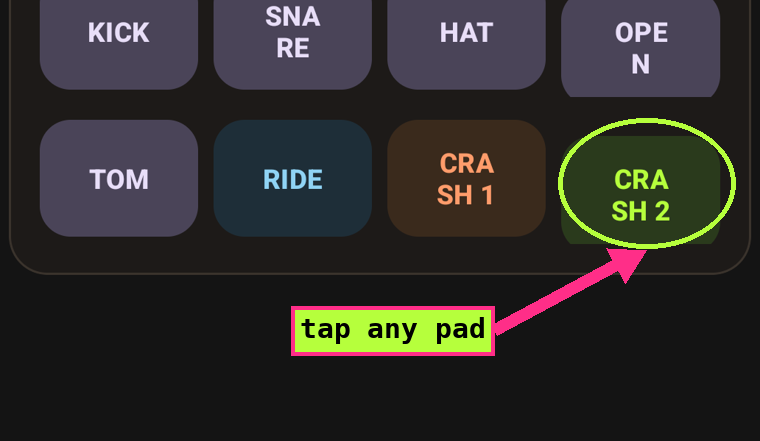
Eight on-screen pads: kick, snare, closed and open hats, tom, ride, and two crashes. Tap lower on a pad to hit harder - the bottom edge is full velocity, like leaning into a real pad.
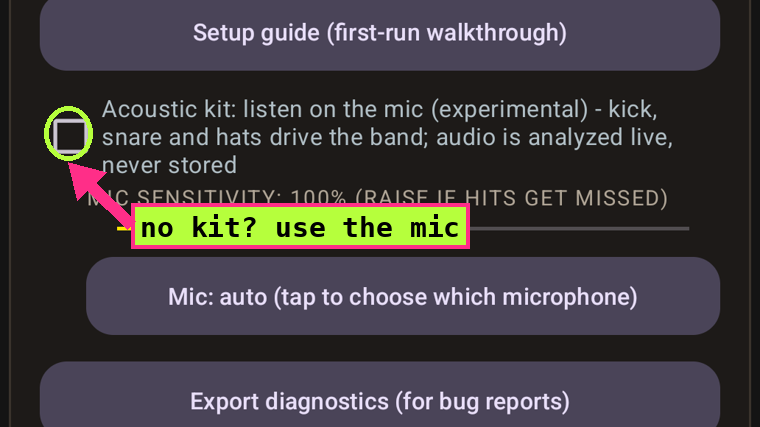
Acoustic kit (experimental) - the phone just listens
- Put on wired headphones (not optional - on the speaker, the mic hears the band and the app follows itself).
- Setup tab > "Acoustic kit: listen on the mic", allow the microphone.
- Put the phone on a stool near the kit, favoring the kick side, and play.
The mic picks out kick, snare, hats and crashes. Audio is analyzed live and never stored or sent anywhere. Toms are ignored on purpose - tempo doesn't need them.
Tune it to your phone: right under the checkbox there's a Mic sensitivity slider (raise it if hits get missed - phone mics vary a lot) and a Mic picker. The picker matters more than it looks: if your wired headphones have an inline mic, Android silently listens through that - dangling at your chest instead of pointed at your kit. Set Mic to Phone mic and it can't happen; or pick a USB mic/interface if you have one for the cleanest signal.
2. Play with the band
Just play (the band finds you)
Play a steady groove for about two bars. The BPM lights up, the beat lights start marching, and the band joins. From there it follows you: push the tempo and it comes along, play quieter and the arrangement thins out, dig in and it brightens.
Count me in (the band starts first)
Tap Count me in in the bottom bar: one bar of clicks at the shown tempo (four in 4/4, three in 3/4, and so on), then the band starts and you join. Tap the button repeatedly to set the tempo by tapping.
Lock to my hits (you trigger every note)
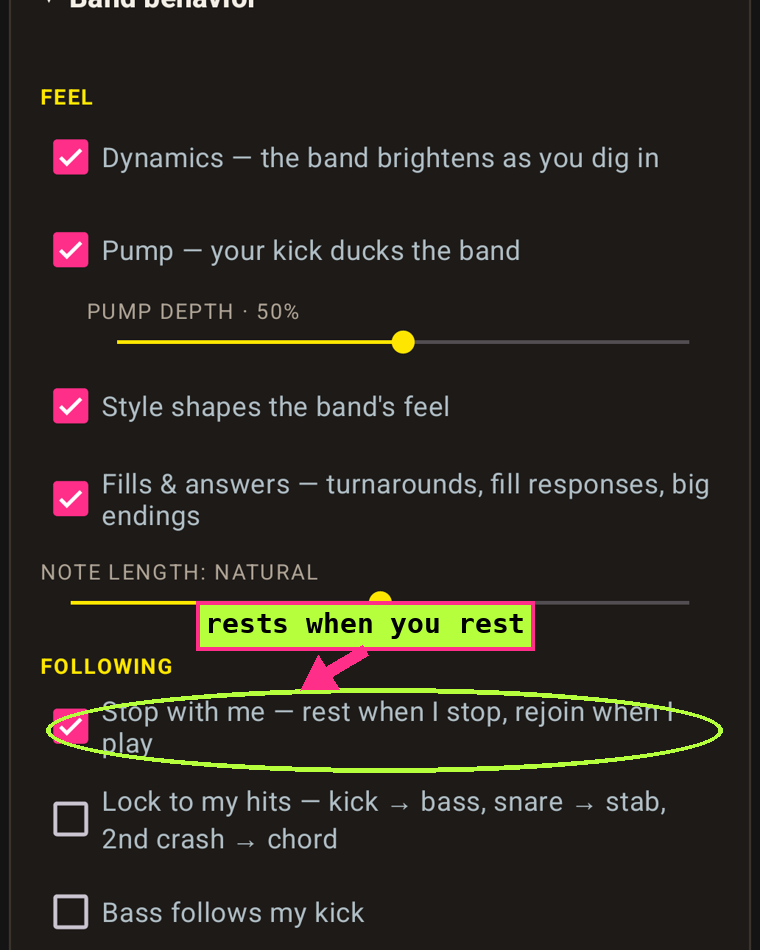
The following modes live on the Band tab. In this mode the band doesn't predict - each of your hits directly drives the bass and comping, so it works even when your playing is too loose to track. Style still shapes how it responds: jazz walks, funk pops octaves, punk drives root-fifth.
The 2x button
Bashery reads tempo at the half-time feel by default (170 BPM punk reads as 85). If the BPM looks halved, tap 2x - this also doubles the MIDI clock sent to external gear.
Bands and My jams
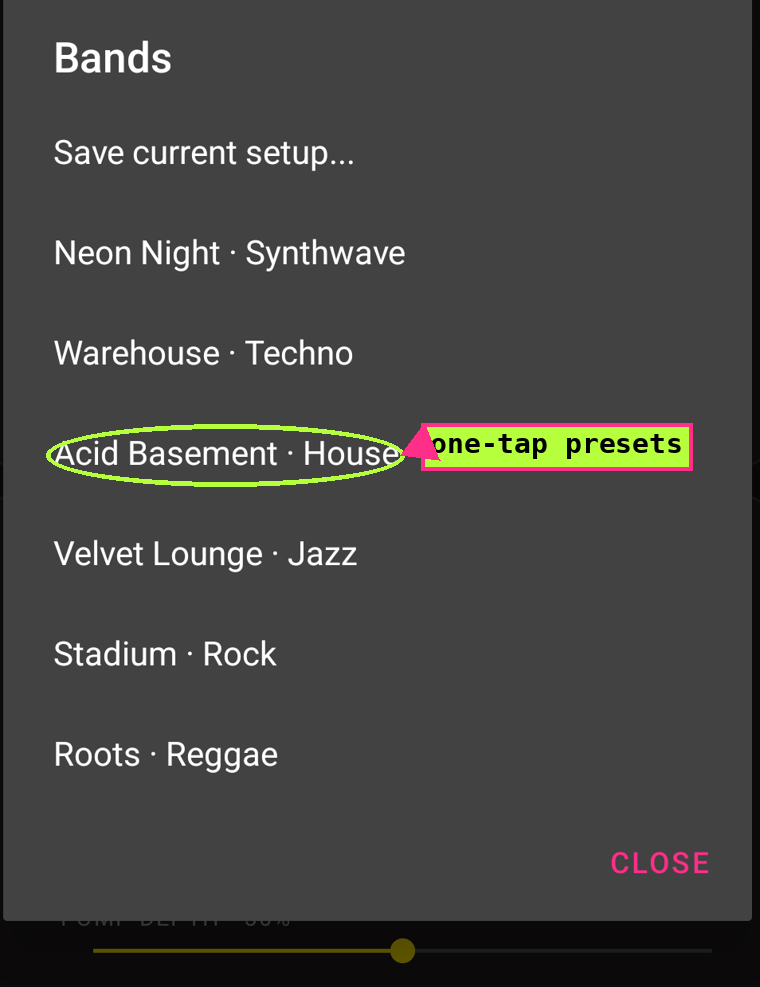
Both live on the Band tab. Bands is one-tap ensembles - style, sounds, and levels together (try Neon Night or Acid Basement). Save your own setups there too. My jams holds your recordings: play back, share, delete.
3. What the cymbals do
- Crash 1 - starts/stops the sequence (the 303 line), when the sequence feature is on.
- Crash 2 / CHANGE - moves the band to the next chord.
- Fill ending in a crash - the band answers with a lick.
- Fill into a crash, then stop - the band lands a final chord and lets it ring.
- Acoustic mode: one mic can't tell two crashes apart, so crash twice within a beat or two - the second crash is the chord change.
One crash only on your kit? Map a spare tom as CHANGE, or use the on-screen crash for the sequence.
4. Shape the sound
Per-part sounds
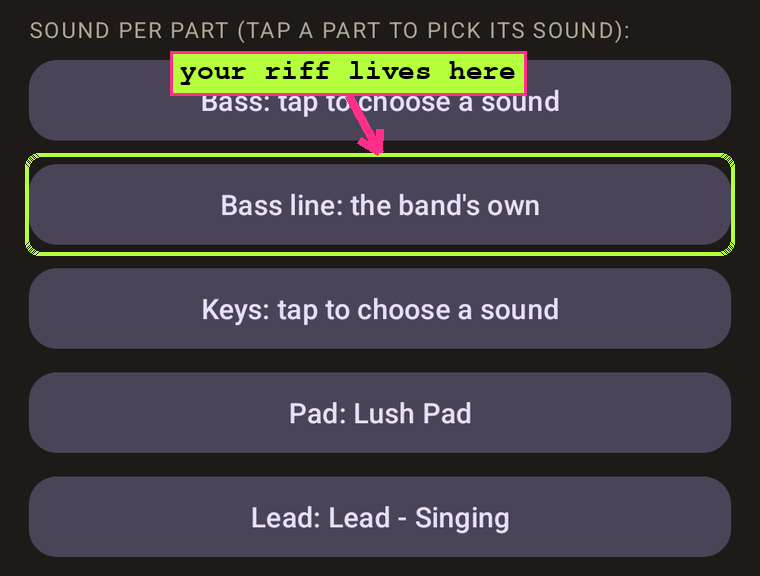
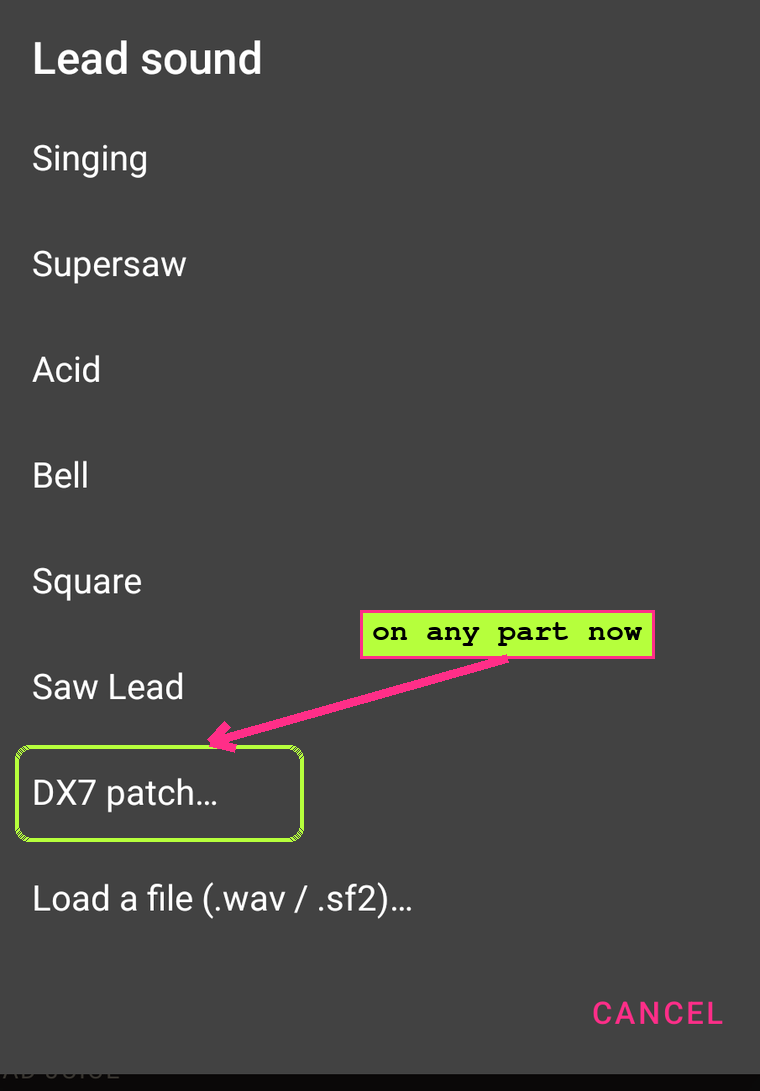
On the Sound tab, each part (Bass / Keys / Pad / Lead) has a tap to choose a sound button, and one menu holds everything: the built-in synths, the 808 bass, sampled instruments, DX7 patches (import your own .syx), or your own WAV - the band pitches your sample to every chord. Pick a part, pick its sound, done. A DX7 patch can go on any part now, the lead included.
The 808 bass
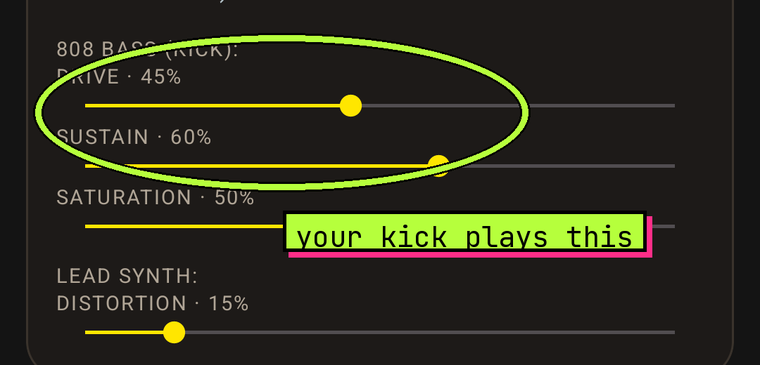
When the 808 is on the kick, Drive / Sustain / Saturation sliders appear - from clean sub to blown-out. Your kick hits it.
Pad Juice - gate and phaser
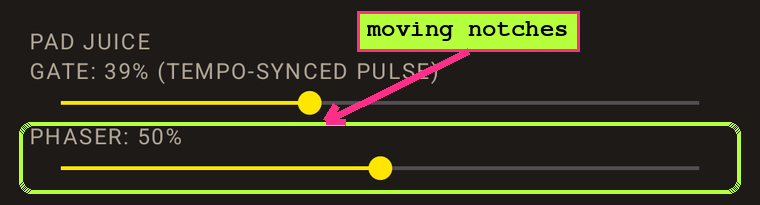
Under Pad Juice on the Sound tab, two effects shape just the pad. Gate chops it in time with the beat, the trance gate pulse, from a gentle throb up to a hard stutter. Phaser sweeps moving notches across the pad so it drifts and shimmers instead of sitting still. Both start at off, so dial in as much or as little as you want.
The pump (sidechain)
Pump (on the Band tab, under Feel) makes the whole band duck when your kick lands - the EDM "breathing" effect, velocity-sensitive, tempo-shaped. Depth slider under it.
Glue, dynamics, reverb
Dynamics lives on the Band tab with the pump; Glue and Reverb are on the Sound tab. Glue is gentle bus compression that makes the band sound mixed (on by default). Dynamics-reactive band ties the synths' brightness to how hard you play - and the acid/303 line leans into it hardest: it sits dark, and your kick and snare velocity open its filter, so the drums pump the acid line. Reverb slider does what it says.
Octaves - whole band and per part
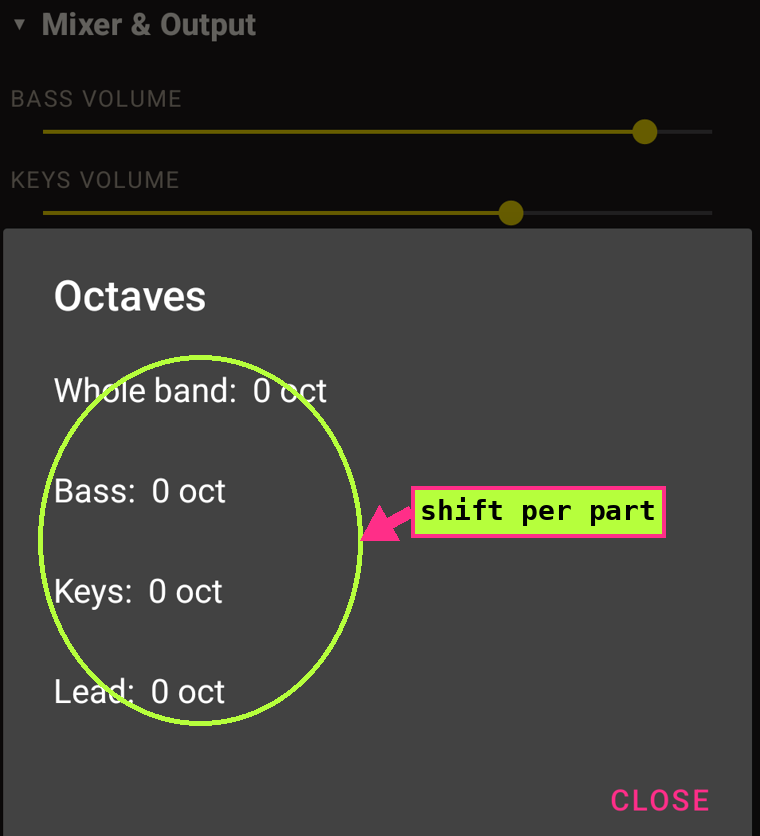
On the Mixer tab, under Transpose, the Octaves button is one place to move the band up or down: a whole band shift plus Bass, Keys and Lead each on their own. Drop the bass for weight, push the lead up to sing over the top. The summary line under the button shows where everything sits at a glance, and each shift moves what you hear and what goes out over MIDI together - so you never have to reach for the transpose buttons on your synth.
5. Bring your own MIDI
Chords (the harmonic roadmap)
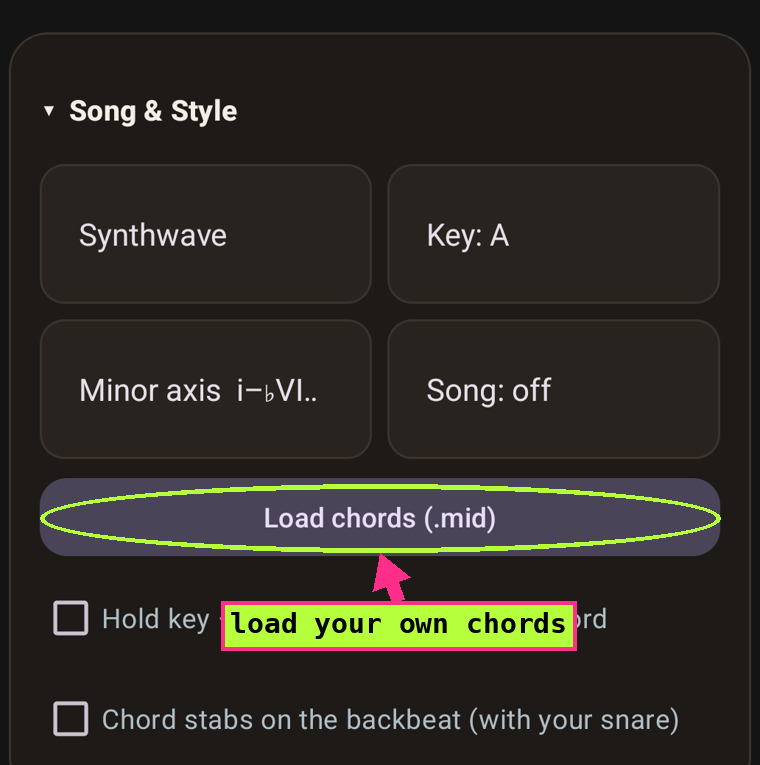
On the Song tab, Load chords imports a MIDI file of chords - one chord per bar works best - as a selectable progression. The band keeps the actual voicings from your file and still adapts to your playing. Name the file with its key (like lofi Amin.mid) and Bashery reads it.
Sequence lines (the 303)
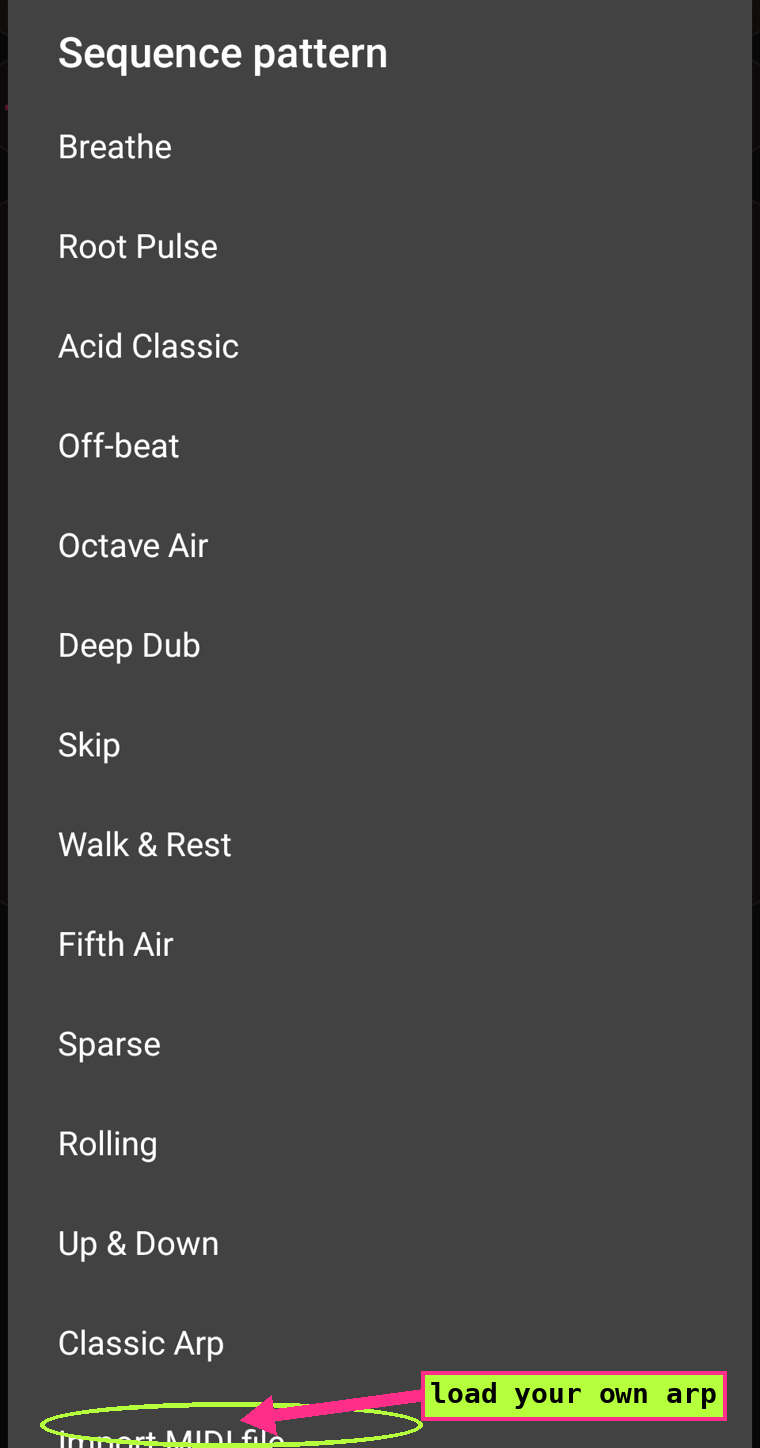
Everything for the 303 lives on the Seq tab. Tick Crash-1 sequence to turn it on, then Sequence pattern > Import MIDI file turns any .mid riff into a sequence pattern: it snaps to the step grid, your file's loud notes become accents, and every pitch follows the current chord - imported riffs ride the changes like the built-in patterns. Up to 4 bars; start it with Crash 1.
Pick a scale: the Roll in scale picker (right there on the Seq tab) sets what the generator and dice draw from - Chord tones by default, or one of the seven modes from Ionian to Locrian. It's your steer on the randomness.
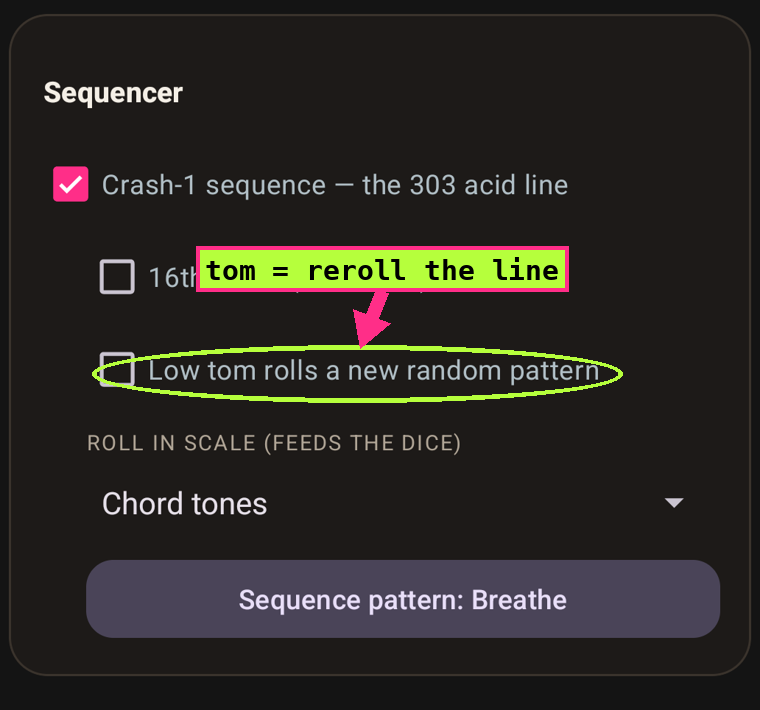
Roll your own: tick "Low tom rolls a new random pattern" and, while the sequence runs, every low-tom hit generates a fresh acid line - in your chosen scale, following your chords, with 303 slides sprinkled in. Roll until one grabs you.
Bass lines (the 808 plays your riff)
Bass line (under the Bass sound picker) > Import a MIDI riff. The band's bass plays your riff, following the chords, while everything else still arranges around it - your dynamics scale it, solos thin it, turnarounds take the last beat. Tap again to go back to the band's own bassline.
6. Drive external synths
Choose where the band plays
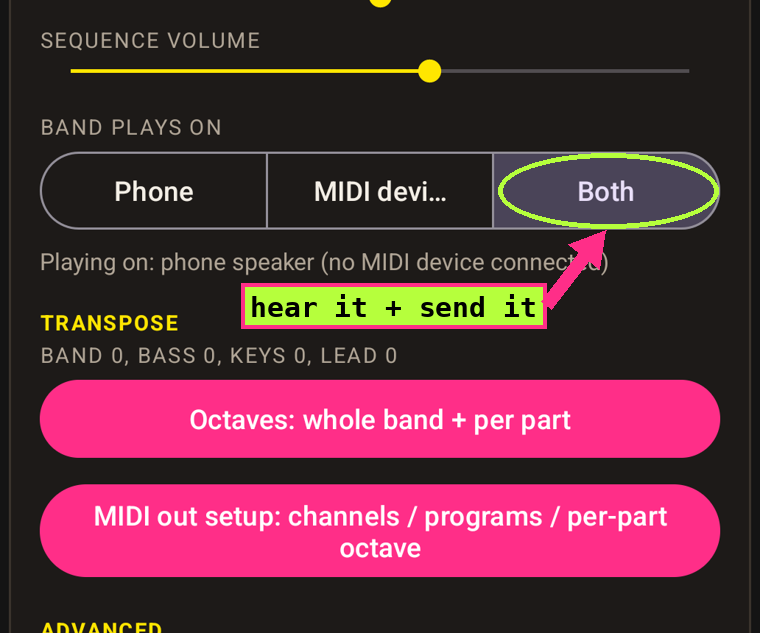
On the Mixer tab, "band plays on": Phone (internal sounds; MIDI clock still flows), MIDI device (your gear renders everything), or Both (layered on purpose).
MIDI out setup
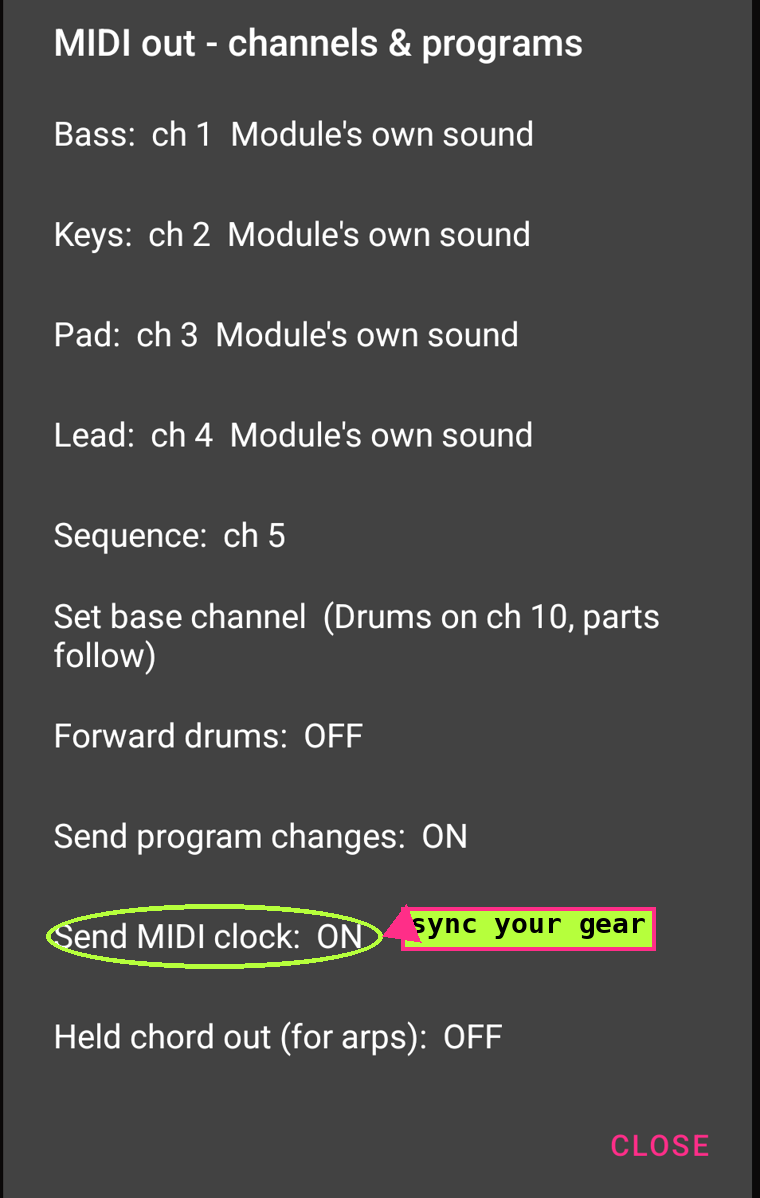
With MIDI device or Both selected, tap MIDI out setup:
- Per part: channel, program, and a MIDI-only octave (a separate shift from the Octaves control above - for when your external synth needs a different octave than the internal sound). Programs default to "Module's own sound" - Bashery never changes your synth's patches unless you ask.
- Sequence: the 303 line's own channel (default 5) - point it at its own machine.
- Set base channel: lays all parts out consecutively for multi-timbral gear.
- Forward drums: your kit hits go out as MIDI too.
- Send MIDI clock: real MIDI clock (24 ppqn) derived from your tempo, with start/stop, bar-aligned. Your delays, arps and sequencers chase you the way the band does.
- Held chord out: the current chord voicing as held notes on its own channel, changing only when the harmony moves. Feed an arpeggiator or pad synth: notes from this, rate from the clock - in key and in time.
7. Record and share jams
Tap Rec, play, tap Save. Jams land in My jams (play back, share straight to Discord, delete the duds), and copies go to Downloads as .mid (drums + band, opens in any DAW) and .wav (the full mix - your kit's drums printed in, if "record kit drums" is on).
One physics note for e-kit players: MIDI carries no audio, so your module's own drum sounds can never be in the file - the app prints its synth drums playing your exact hits as a stand-in. The "Kit drums in the recording" slider under the capture checkbox sets how loud they sit in the mix. Everything else in the file - your loaded WAVs, the 808, the whole band - is the real sound.
8. The web kit
drum.bashery.app is a playable kit in the browser. On its own it's a taste of the idea; paired with the app (tap Pair web kit, enter the code) the browser mirrors the phone's band - sounds, pump and all - and its pads play into your session.
9. When something is off
- Feels late? Wired audio first (Bluetooth adds 100-300ms by design), then Calibrate timing.
- Stuck on listening? Steadier groove for 2+ bars, or just use Count me in.
- BPM looks halved? The 2x button.
- Anything weird? Setup tab > Export diagnostics - the report attaches as a .txt with everything we need, and a short summary lands on your clipboard. Send it to #bug-reports on the Discord, or email it to support@bashery.app.
Bashery has no accounts and no ads, and nothing leaves your phone unless you share it. More: the blog · press kit · privacy
© 2026 Sashyo & Petty Vendetta. All rights reserved. · bashery.app